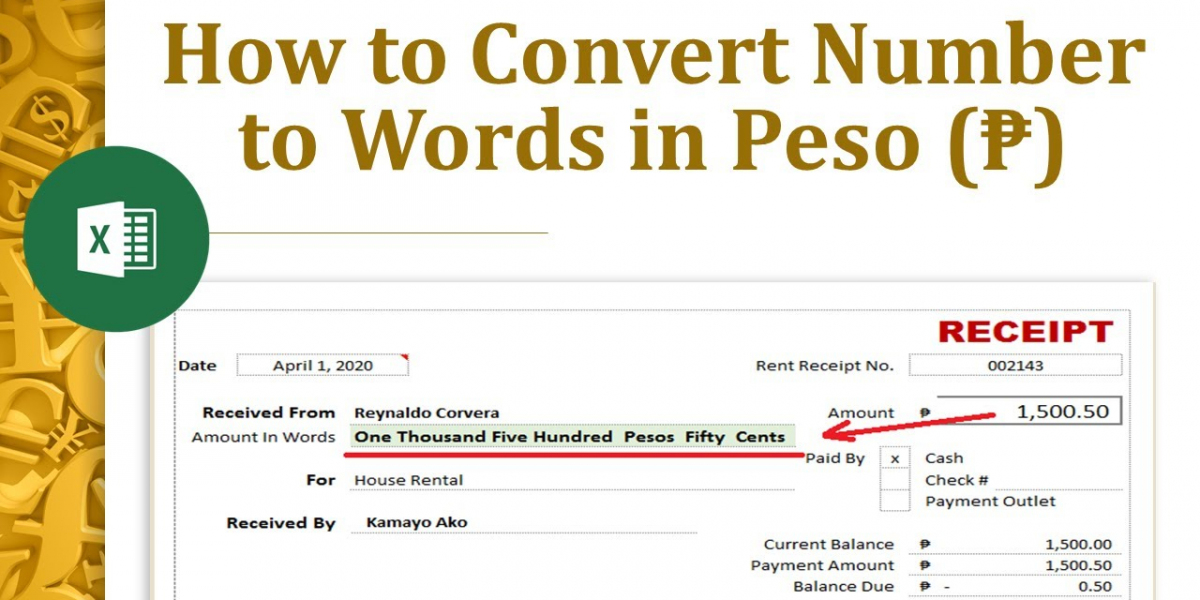
There are several reasons you might want to convert numbers to words in Excel:
Excel doesn’t have a built-in function to convert numbers to words directly. Therefore, you'll need to use a custom VBA function. VBA is a programming language within Excel that enables you to extend its functionality.
If you aren't familiar with VBA, don’t worry. The process of adding and using a VBA script is straightforward, and this article will guide you through it step by step.
Before you start, you need to ensure that the Developer tab is enabled in Excel, as this is where you'll be working with VBA.
Once the Developer tab is enabled:
Copy and paste the following VBA code into the module window:
vba
Copy code
Function NumToWords(ByVal MyNumber)
Dim Units As String
Dim Tens As String
Dim Pesos As String
Dim Cents As String
Dim DecimalPlace As Integer
Dim Count As Integer
ReDim Place(9) As String
Place(2) = " Thousand "
Place(3) = " Million "
Place(4) = " Billion "
' Convert MyNumber to String in case it's a number.
MyNumber = Trim(CStr(MyNumber))
' Find Position of decimal place.
DecimalPlace = InStr(MyNumber, ".")
' Convert Peso amount.
If DecimalPlace > 0 Then
Pesos = Left(MyNumber, DecimalPlace - 1)
Cents = Mid(MyNumber, DecimalPlace + 1) & "/100"
Else
Pesos = MyNumber
Cents = "00/100"
End If
Count = 1
Do While Pesos <> ""
Temp = GetHundreds(Right(Pesos, 3))
If Temp <> "" Then Units = Temp & Place(Count) & Units
If Len(Pesos) > 3 Then
Pesos = Left(Pesos, Len(Pesos) - 3)
Else
Pesos = ""
End If
Count = Count + 1
Loop
NumToWords = Units & "Pesos " & Cents
End Function
Function GetHundreds(ByVal MyNumber)
Dim Result As String
If Val(MyNumber) = 0 Then Exit Function
MyNumber = Right("000" & MyNumber, 3)
' Convert the hundreds place.
If Mid(MyNumber, 1, 1) <> "0" Then
Result = GetDigit(Mid(MyNumber, 1, 1)) & " Hundred "
End If
' Convert the tens and ones place.
If Mid(MyNumber, 2, 1) <> "0" Then
Result = Result & GetTens(Mid(MyNumber, 2))
Else
Result = Result & GetDigit(Mid(MyNumber, 3))
End If
GetHundreds = Result
End Function
Function GetTens(TensText)
Dim Result As String
Result = ""
If Val(Left(TensText, 1)) = 1 Then
Select Case Val(TensText)
Case 10: Result = "Ten"
Case 11: Result = "Eleven"
Case 12: Result = "Twelve"
Case 13: Result = "Thirteen"
Case 14: Result = "Fourteen"
Case 15: Result = "Fifteen"
Case 16: Result = "Sixteen"
Case 17: Result = "Seventeen"
Case 18: Result = "Eighteen"
Case 19: Result = "Nineteen"
Case Else
End Select
Else
Select Case Val(Left(TensText, 1))
Case 2: Result = "Twenty "
Case 3: Result = "Thirty "
Case 4: Result = "Forty "
Case 5: Result = "Fifty "
Case 6: Result = "Sixty "
Case 7: Result = "Seventy "
Case 8: Result = "Eighty "
Case 9: Result = "Ninety "
Case Else
End Select
Result = Result & GetDigit(Right(TensText, 1))
End If
GetTens = Result
End Function
Function GetDigit(Digit)
Select Case Val(Digit)
Case 1: GetDigit = "One"
Case 2: GetDigit = "Two"
Case 3: GetDigit = "Three"
Case 4: GetDigit = "Four"
Case 5: GetDigit = "Five"
Case 6: GetDigit = "Six"
Case 7: GetDigit = "Seven"
Case 8: GetDigit = "Eight"
Case 9: GetDigit = "Nine"
Case Else: GetDigit = ""
End Select
End Function
This VBA code converts any number into words in the Peso format. It handles numbers up to billions and includes centavos, which are represented as "00/100" when no cents are provided.
Before you can use the function, save your workbook as a macro-enabled file:
Now that you've added the VBA function, you can use it in your Excel sheet like a normal function. Here’s how:
For example, if cell A1 contains the value 1234.56, the result would be "One Thousand Two Hundred Thirty-Four Pesos 56/100."
With this guide, you now know how to convert number to words in excel peso using a custom VBA function. This process is particularly useful for preparing financial documents like invoices or checks. By following these steps, you’ll be able to automatically spell out any numerical amount in Peso, complete with centavos. While Excel doesn’t offer this feature natively, the flexibility of VBA allows you to extend its functionality to meet your needs.

tracker57 tracker57
1 posts
-
 Mark Zuckerberg: 'Meta mắc sai lầm khi chuyển dịch nhân sự'
Mark Zuckerberg, CEO Meta, thừa nhận công ty có những quyết định chưa chính xác khi tái cấu trúc nhân sự để phục vụ chiến lược AI.
-
 Siêu máy tính, AI dự đoán Tây Ban Nha vô địch World Cup 2026
Nhiều siêu máy tính và AI dự đoán Tây Ban Nha vô địch World Cup 2026, trong khi một số nghiêng về đội tuyển Brazil, Anh.
-
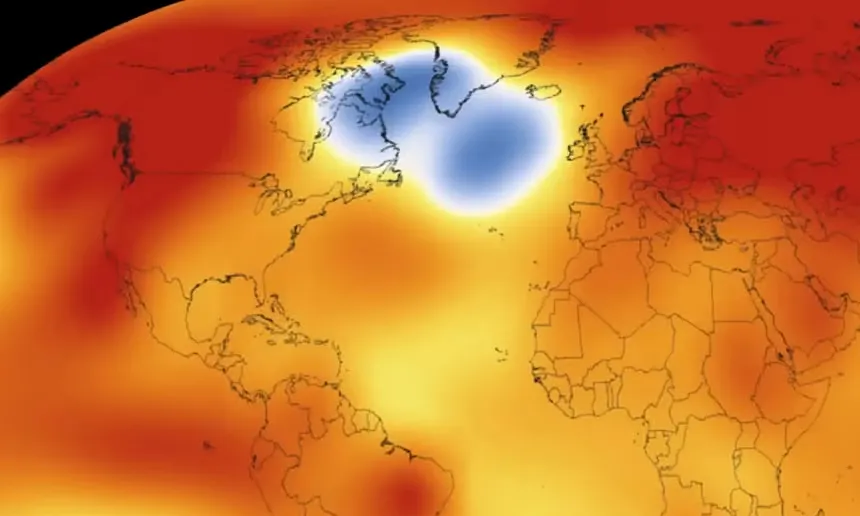 'Đốm lạnh' đi ngược xu hướng ấm lên giữa Đại Tây Dương
Vùng nước lạnh bất thường ở Đại Tây Dương có thể báo hiệu hệ thống hải lưu quan trọng suy yếu, đẩy thế giới đến gần khủng hoảng khí hậu.
-
 Số hóa toàn bộ quy trình thi công mở rộng cao tốc TP HCM về miền Tây
Quá trình mở rộng cao tốc TP HCM - Mỹ Thuận được quản lý tập trung trên nền tảng số, giúp giảm nhân sự, tiết kiệm 167 tỷ đồng và dự kiến rút ngắn tiến độ 6 tháng.
-
 Elon Musk: 'Tương lai tiền sẽ không còn quan trọng'
CEO SpaceX Elon Musk, tỷ phú nghìn tỷ đầu tiên trên thế giới, tin rằng tiền bạc trong tương lai không còn quan trọng do tự động hóa.
-
 X accused of giving racists ‘impunity’ after refusing to bar N- and P-word posts
Site takes no action over hate posts against UK politicians including Kemi Badenock, Shabana Mahmood and Zia Yusuf
-
 Cách Việt Nam bảo hộ sản phẩm do AI tạo ra
Phó cục trưởng Sở hữu trí tuệ Trần Lê Hồng cho biết bản quyền sản phẩm do AI tạo ra hiện vẫn gây nhiều tranh cãi.
-
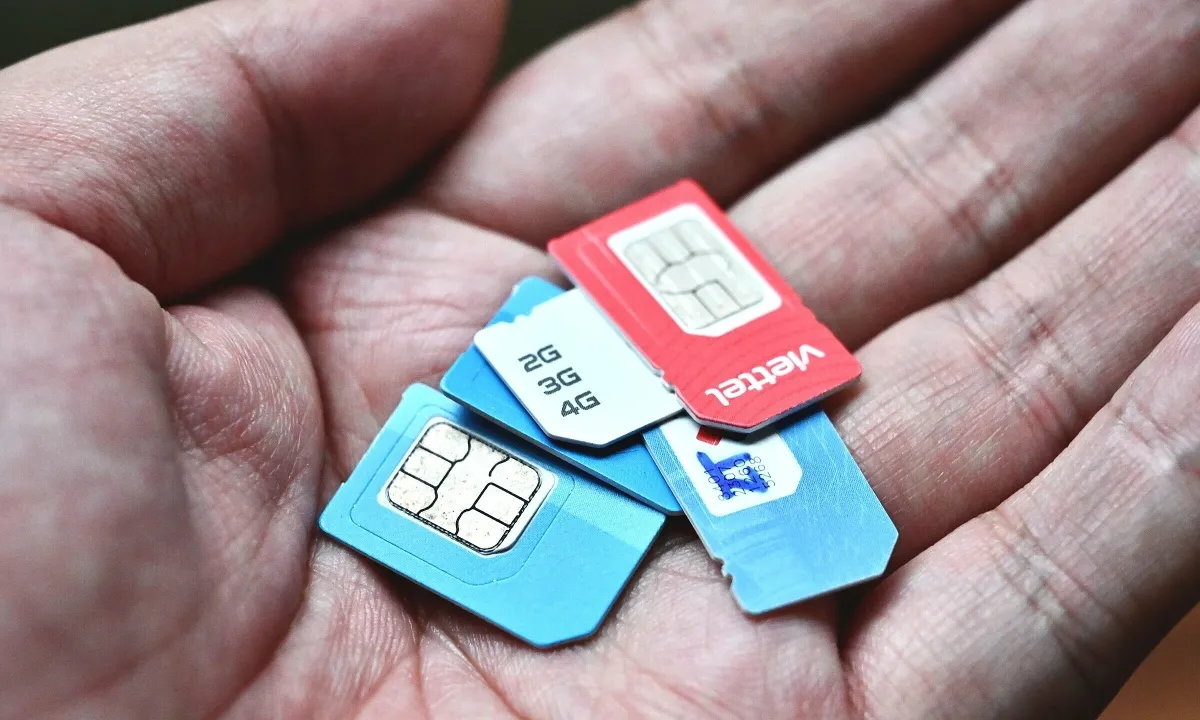 Không xác nhận thuê bao do ở nước ngoài liệu có bị khóa SIM?
Tôi không thể truy cập VNeID để xác nhận tình trạng sử dụng thuê bao do đang ở nước ngoài, tôi phải làm sao để không bị khóa SIM?
-
 Robot rắn trườn trên dây điện để kiểm tra hư hỏng
Nhờ cơ thể nhiều khớp linh hoạt, robot rắn dễ dàng di chuyển trên dây điện, được đánh giá hiệu quả gấp ba lần kiểm tra thủ công.
-
 Cách Mỹ và Trung Quốc phát triển điện hạt nhân
Trong khi Mỹ ưu tiên phát triển lò phản ứng hạt nhân nhỏ linh hoạt, Trung Quốc lại tập trung phát triển những lò lớn cấp gigawatt để đáp ứng nhu cầu tiêu thụ điện.
-
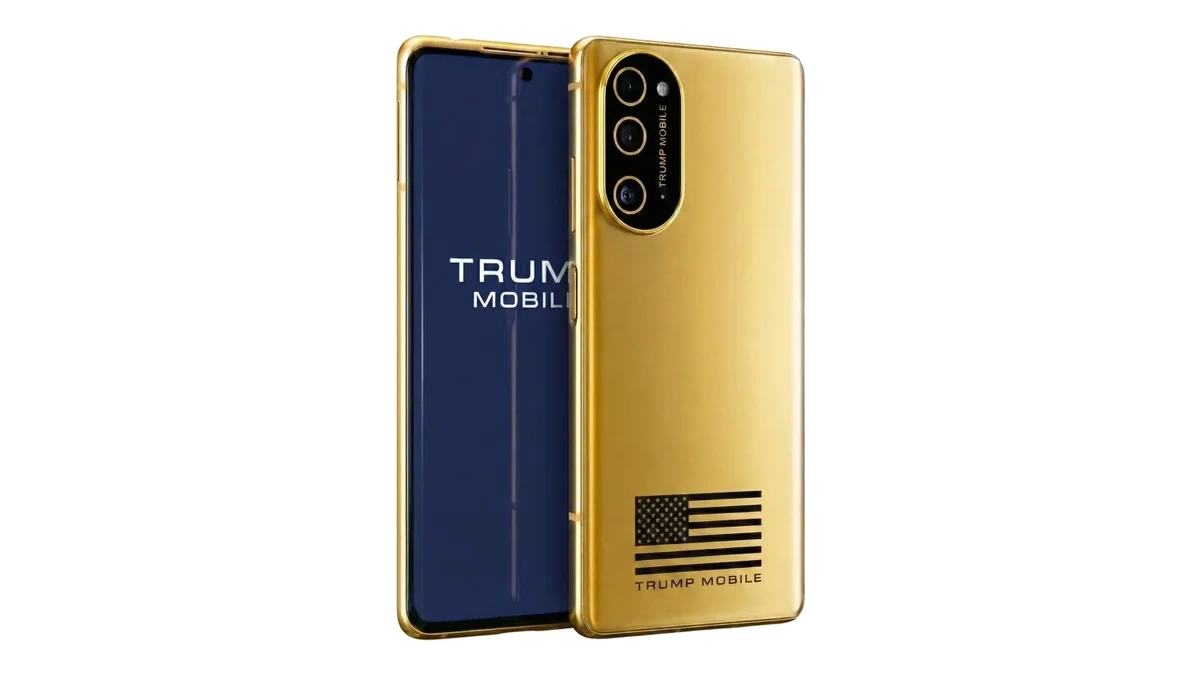 Bên trong điện thoại Trump T1 'giống HTC U24 Pro'
Kênh iFixit tháo rời điện thoại T1 của Trump Mobile và nhận thấy kết cấu giống mẫu di động tầm trung ra mắt năm 2024 của HTC.


