
Auto clickers are becoming increasingly popular among Chromebook users, offering a simple yet effective way to automate repetitive clicking tasks. Whether you're a gamer, a productivity enthusiast, or just someone looking to ease the strain on your fingers, an auto clicker for Chromebook can make life a lot easier. But what exactly is an auto clicker, and how do you use it on a Chromebook? In this article, we’ll dive deep into everything you need to know.
An auto clicker is a software or tool that automatically simulates mouse clicks at a user-defined rate. It allows you to set the number of clicks per second, the time interval between clicks, and even the location where you want the clicks to occur. Essentially, it takes over the task of manual clicking and repeats it based on your input.
Auto clickers are often used in gaming, especially for games that require frequent clicking, such as idle games or games with repetitive actions. However, they are also useful in a wide range of other activities, including form-filling, data entry, or any task where you have to perform the same click over and over.
Chromebooks are lightweight, affordable laptops that run on Google's ChromeOS. They are known for their simplicity, making them ideal for users who want to get things done without the hassle of managing a full-fledged operating system like Windows or macOS. However, when it comes to repetitive clicking tasks, an auto clicker for Chromebook can enhance your productivity and user experience.
Here are some key reasons why people use an auto clicker on a Chromebook:
Unlike Windows or macOS, ChromeOS doesn’t support traditional desktop applications in the same way. However, there are still a few ways to get an auto clicker running on your Chromebook.
One of the easiest ways to install an auto clicker on a Chromebook is through the Chrome Web Store. Chrome extensions are small programs that add additional functionality to your browser, and many of them are specifically designed for automating clicks.
To install an auto clicker extension, follow these steps:
One popular Chrome extension is “Auto Clicker – AutoFill.” It’s easy to use and has flexible options that can be adjusted to meet your needs.
Since many Chromebooks now support Android apps via the Google Play Store, you can also download an Android-based auto clicker. These apps are often more robust than Chrome extensions and offer additional features like multi-point clicking, recording click patterns, and more.
To install an Android auto clicker on your Chromebook, follow these steps:
Some of the best Android apps for auto-clicking include "Auto Clicker - Automatic Tap" and "Click Assistant - Auto Clicker."
For those who don’t want to install any additional apps or extensions, Chromebook has a built-in feature that can simulate some auto-clicking functionality. It’s known as "Automatic Clicks" and is part of ChromeOS's accessibility features.
Here’s how to enable it:
While this feature is not as advanced as third-party auto clickers, it can be useful for basic clicking tasks.
While auto clickers can be a great tool, it’s essential to use them responsibly. Some games or websites may prohibit the use of auto clickers, and using one in these environments could result in penalties or bans. Always check the terms and conditions of the platform you're using to make sure auto clickers are allowed.
Additionally, be cautious about downloading any auto clicker software from untrusted sources. Stick to well-reviewed Chrome extensions or Android apps to avoid malware or other security risks.
An auto clicker for Chromebook can be a valuable tool for automating repetitive tasks, whether you’re gaming or working. With several options available, from Chrome extensions to Android apps and built-in Chromebook features, finding the right auto clicker is easier than ever.

Micah James
1 posts
-
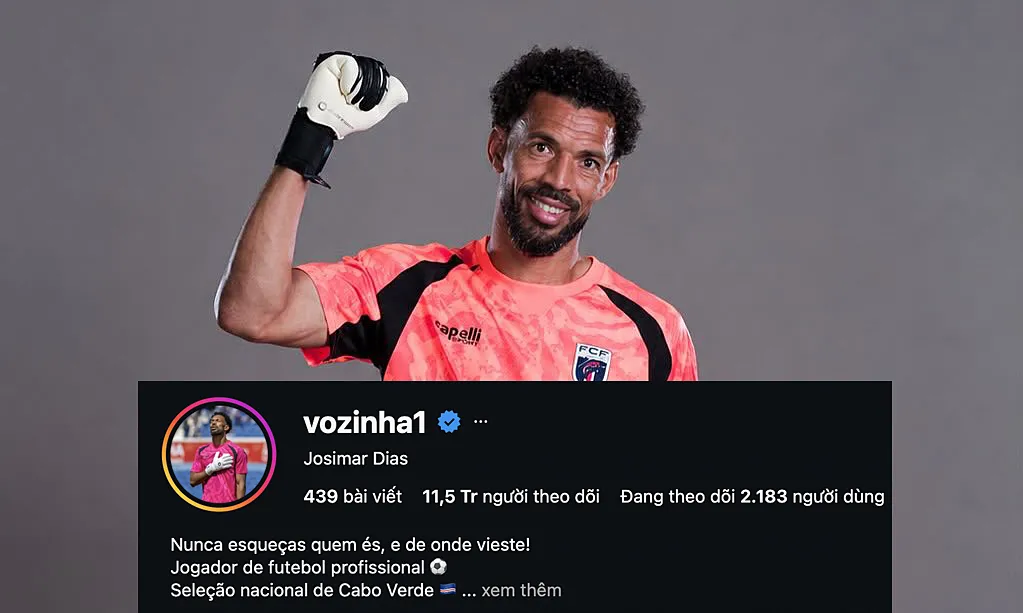 Thủ môn Cape Verde gây sốt mạng sau trận đấu với Tây Ban Nha
Tài khoản Instagram của thủ môn Cape Verde Josimar Dias, hay Vozinha, bất ngờ tăng từ 45.000 người theo dõi lên 11,5 triệu, sau trận đấu với Tây Ban Nha.
-
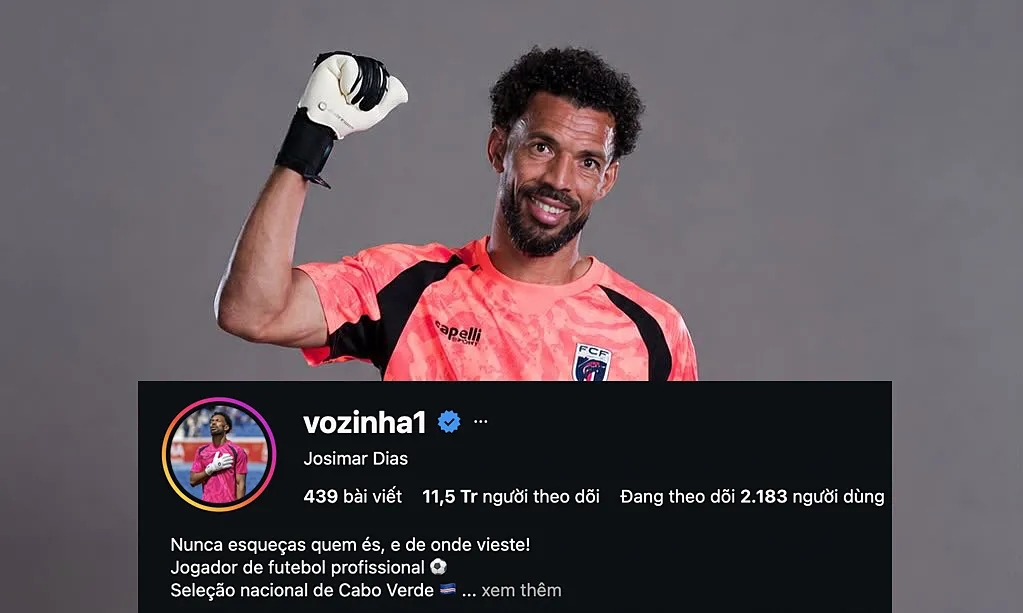 Thủ môn Cape Verde gây sốt mạng xã hội sau trận đấu với Tây Ban Nha
Tài khoản Instagram của thủ môn Cape Verde Josimar Dias, hay Vozinha, bất ngờ tăng từ 45.000 người theo dõi lên 11,5 triệu, sau trận đấu với Tây Ban Nha.
-
 ‘A neoliberal nightmare’: my ride on the Vegas Loop – Elon Musk’s answer to traffic jams
Ten years ago, after complaining that traffic was ‘driving him nuts’, Musk’s Boring Company began building underground tunnels to ease congestion on the roads. Did he overpromise and underdeliver?
-
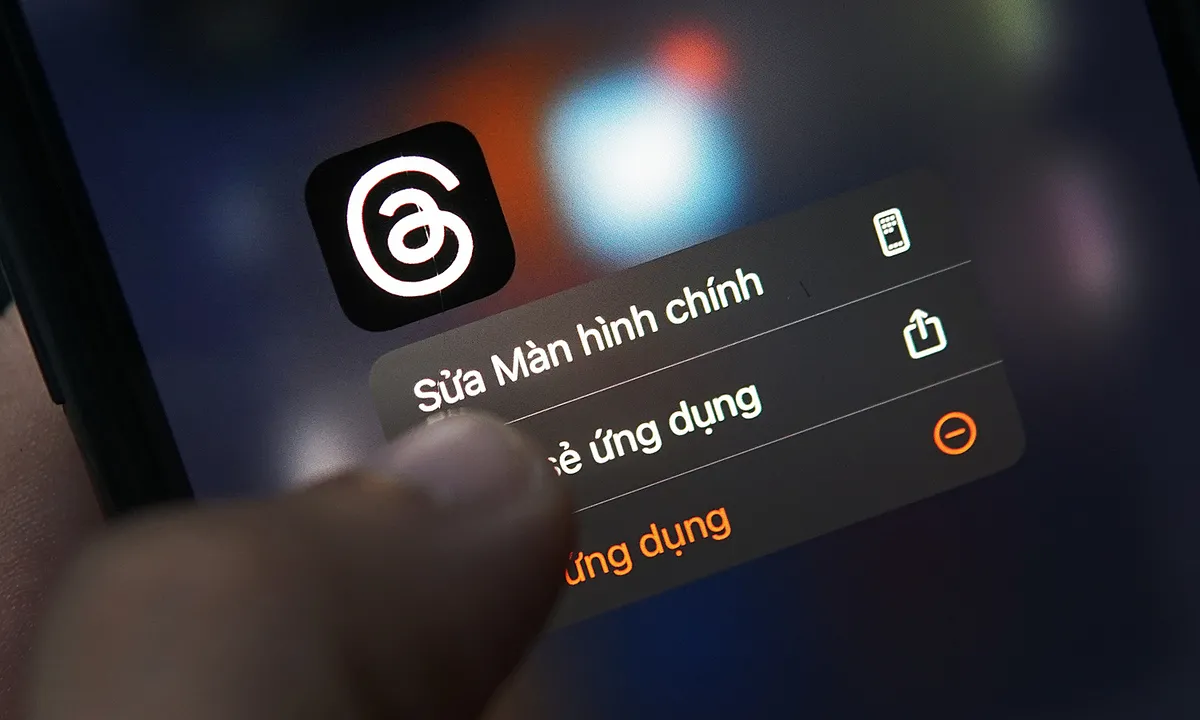 Threads đạt nửa tỷ người dùng
Meta thông báo mạng xã hội Threads đạt 500 triệu người dùng hoạt động hàng tháng, đồng thời công bố loạt tính năng mới.
-
 Ultimate SnapInsta Video Download Tutorial: Save Reels, Stories, and Videos Instantly
Learn how to use SnapInsta video downloader to save Instagram Reels, Stories, and videos instantly with this simple step-by-step guide.
-
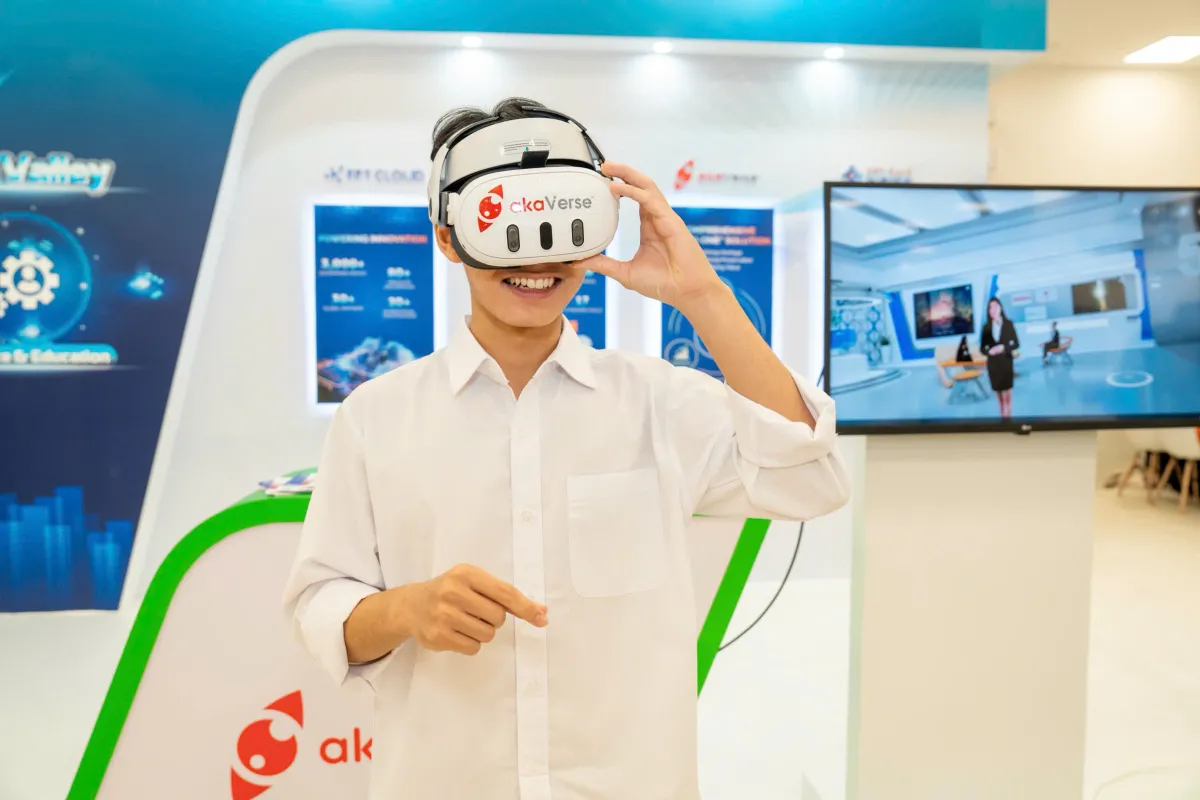 360 dự án vào vòng loại Sáng kiến Khoa học 2026
Từ gần 700 hồ sơ gửi về, cuộc thi Sáng kiến Khoa học 2026 chọn ra 360 dự án bước vào vòng loại với hình thức bình chọn trực tuyến, bắt đầu từ ngày 15/6.
-
 Cuộc chiến dai dẳng giữa OpenAI và Anthropic
Từ đồng nghiệp, Sam Altman và Dario Amodei trở thành người dẫn dắt hai công ty cạnh tranh nhau quyết liệt là OpenAI và Anthropic, thúc đẩy AI phát triển bùng nổ.
-
 Intel bắt đầu sản xuất thử chip 18A-P tiên tiến nhất
Intel đang sản xuất thử nghiệm chip tiên tiến nhất 18A-P, tương đương tiến trình 2 nm, động thái được kỳ vọng thu hút các đối tác hàng đầu, trong đó có Apple.
-
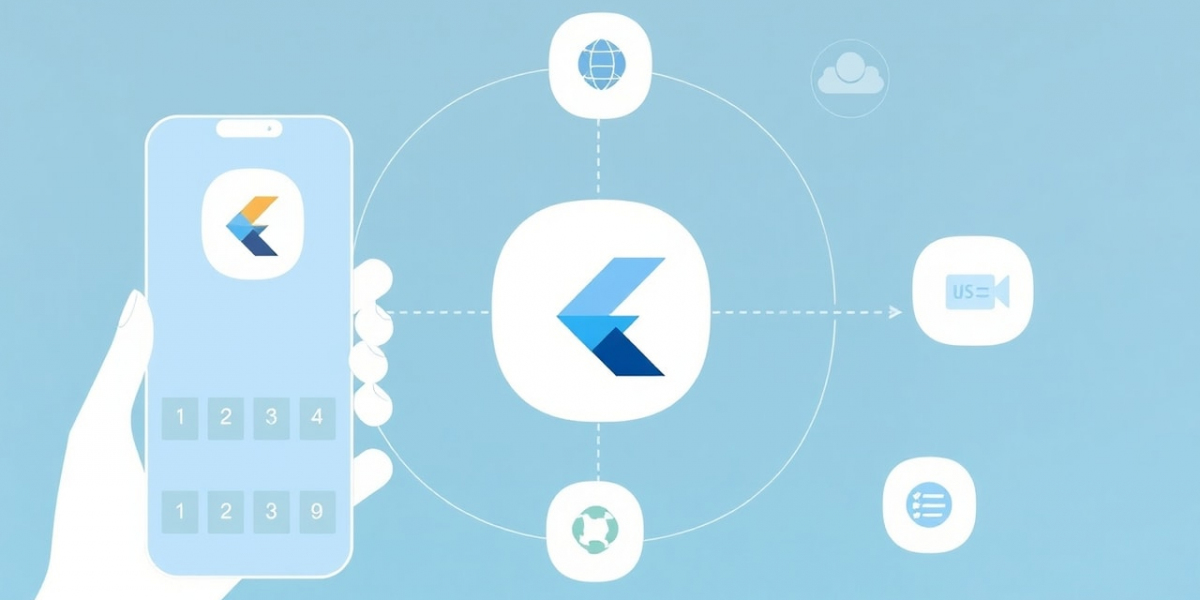 Flutter App Solutions for Businesses in South Africa
Businesses today understand that exceptional customer experiences are essential for long-term growth, which is why Custom Flutter App Solutions for Businesses in South Africa are becoming a preferred digital investment. Organizations across South Africa are leveraging customized Flutter ap
-
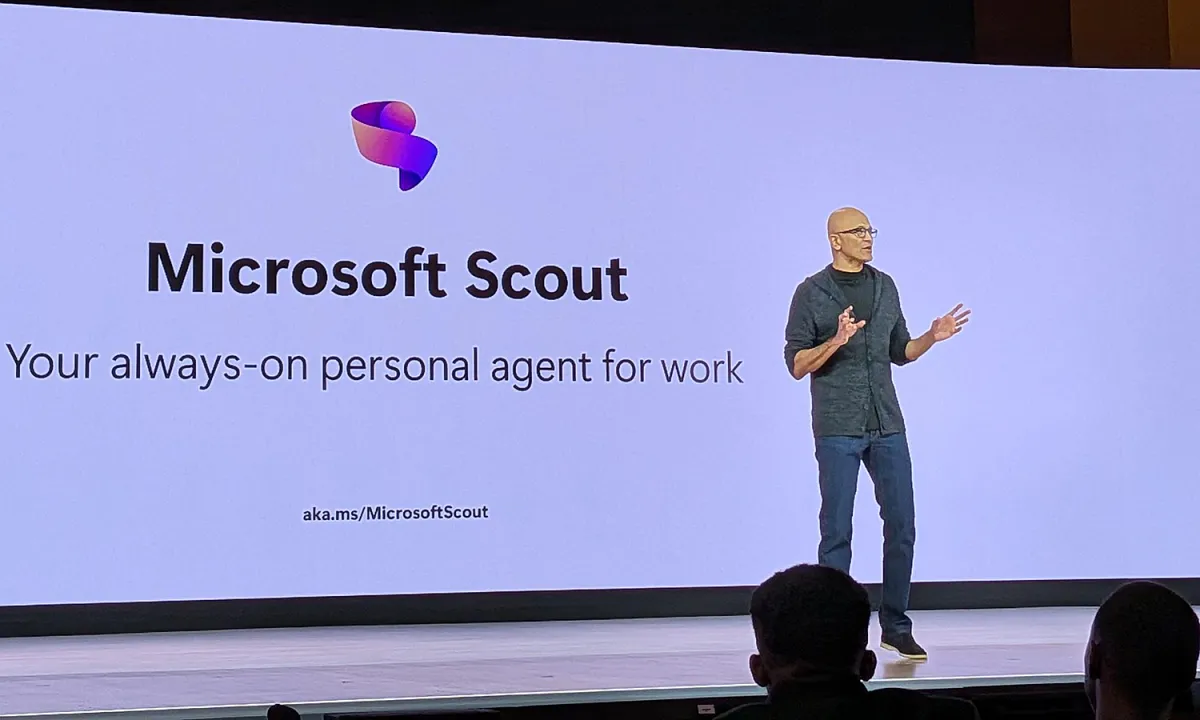 CEO Microsoft: 'AI có thể làm rỗng ruột các ngành công nghiệp'
Satya Nadella, CEO Microsoft, cảnh báo một số ít mô hình AI mạnh mẽ có thể hấp thụ hết kiến thức và kinh nghiệm chuyên môn của doanh nghiệp.
-
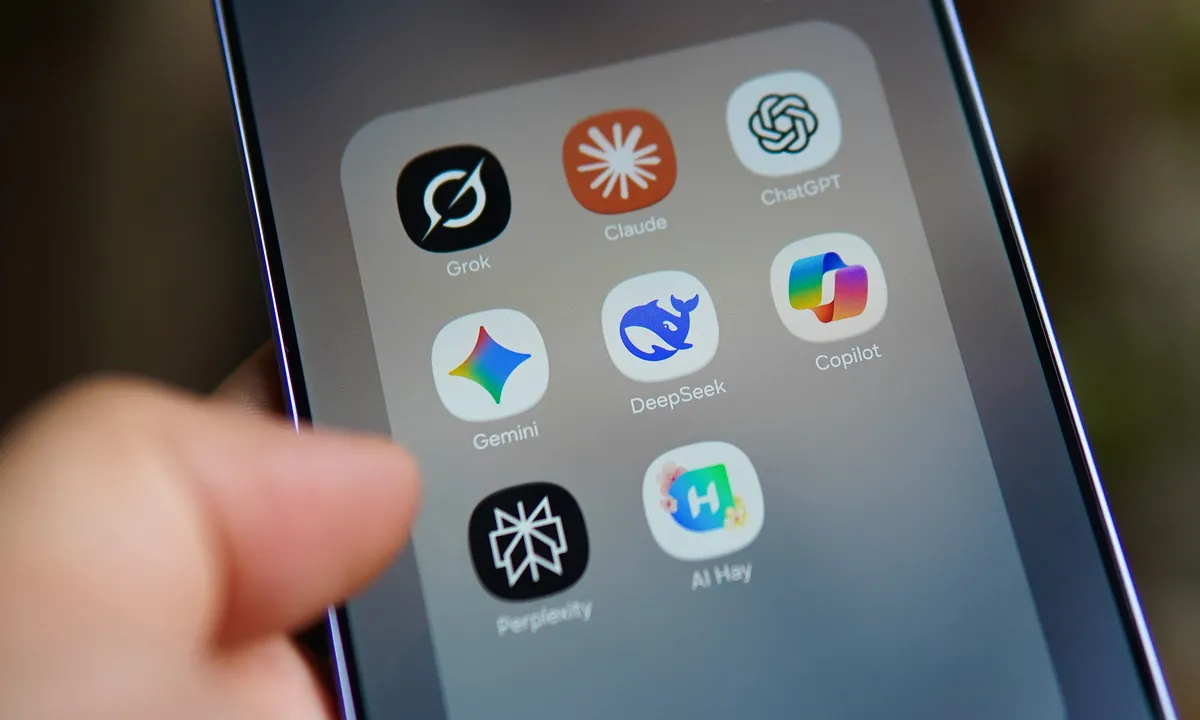 Việt Nam đứng thứ hai Đông Nam Á về ứng dụng AI
Thống kê của Microsoft cho thấy mức độ ứng dụng AI của Việt Nam đạt 26,5%, đồng thời thế giới có dấu hiệu tăng nhu cầu tuyển lập trình viên.


