EZCAD Software Download: The Ultimate Guide to Mastering Laser Marking Efficiency


If you're in the laser engraving, marking, or cutting industry, chances are you've heard of EZCAD software. Whether you're working with a fiber laser, CO₂, or UV laser machine, EZCAD is the industry standard for motion control and marking solutions. But for many users—especially newcomers—finding the right EZCAD software download and understanding how to set it up can be challenging.
This comprehensive guide not only explains how to safely download EZCAD, but also dives deep into its features, compatibility, and troubleshooting—all designed to optimize your laser marking process.
What Is EZCAD Software?
EZCAD is a Windows-based laser marking software developed by BJJCZ (Beijing JCZ Technology). It controls laser systems using their signature controller cards like LMCV4-FIBER, LMCV4-DIGITAL, and others. The software allows precise vector and raster engraving, QR code creation, and batch processing.
Key Features of EZCAD
| Feature | Description |
|---|---|
| Wide Machine Support | Compatible with fiber, CO₂, green, and UV lasers using JCZ control cards |
| Barcode & QR Code Tools | Automatically generates 1D/2D barcodes, QR codes, serial numbers |
| Vector Support | Supports vector formats: PLT, DXF, AI, SVG, DWG |
| Bitmap Engraving | Bitmap (BMP, JPG, PNG) import and grayscale control |
| Variable Text | Easily adds dynamic text (date, serial, etc.) |
| Rotary Axis Support | Enables laser marking on curved/cylindrical surfaces |
| Multi-Language UI | Offers simplified Chinese, English, German, and more |
Types of EZCAD Software Versions
| Version | Use Case | OS Compatibility | Controller Compatibility |
|---|---|---|---|
| EZCAD2 | Most common version; widely used in industry | Windows XP/7/10 | LMCV4 series (USB) |
| EZCAD3 | Supports 3D marking, advanced 64-bit features | Windows 7/10/11 | LMCV5, DLC2, G3 series (Ethernet) |
| EZCAD Mini | Lightweight version for basic needs | Windows | Older machines & light marking |
✅ Note: Always check your controller card model before downloading the software.
Why Is EZCAD Software Download So Important?
Machine Compatibility: Using non-compatible software can result in laser malfunction.
Firmware Updates: The latest version often includes bug fixes and performance enhancements.
File Format Support: Newer versions add support for more file types.
Security: Older or unofficial sources may include malware.
How to Safely Access EZCAD Software Download
When searching for EZCAD software, make sure you're getting the official version compatible with your controller card. Use only trusted manufacturer channels or distributors. Avoid downloading from forums or random third-party websites, as these may contain viruses or modified firmware.
Steps to Download:
EZCAD Software Download: The Ultimate Guide to Mastering Laser Marking Efficiency Identify your controller (e.g., LMCV4, LMCV5, DLC2).
Choose the appropriate version (EZCAD2 or EZCAD3).
Ensure your PC meets system requirements.
Install drivers during setup.
Restart your machine before connecting the laser.
EZCAD Installation Tips
? System Requirements for EZCAD2
OS: Windows XP / 7 / 10 (32-bit preferred)
RAM: 2GB minimum
USB Ports: Required for LMCV4 controller
? System Requirements for EZCAD3
OS: Windows 7 / 10 / 11 (64-bit only)
Graphics: OpenGL supported GPU
RAM: 4GB or more
Network: Ethernet cable for DLC2 & G3 controllers
? Driver Setup
Locate the "drivers" folder in the download package
Use Zadig or JCZ drivers for USB recognition
Always run EZCAD as administrator to ensure access to all system resources
EZCAD User Interface Overview
| Module | Functionality |
|---|---|
| Workspace | Where your design or text is placed and previewed |
| Marking Settings | Adjust power, speed, frequency, and passes |
| Object List | Layer system showing text, vector, images |
| Transform Tools | Scale, rotate, align, and mirror objects |
| Laser Controls | Power on/off, test marking, and light preview modes |
Troubleshooting Common EZCAD Issues
| Issue | Cause | Solution |
|---|---|---|
| Laser Not Firing | Incorrect port or driver issue | Reinstall drivers; check LMC connection |
| “Can’t Find Dongle” Message | Software not recognizing controller card | Ensure proper USB or Ethernet port used |
| EZCAD Crashes on Startup | Incompatible version or missing driver | Try older version or reinstall from scratch |
| Rotary Axis Not Moving | Axis config error in parameters | Enable rotary from "F3" settings |
| Preview Window Blank | GPU conflict or resolution issue | Update display drivers; reset workspace |
Pro Tips for Mastering EZCAD
Use Layers: Assign separate laser parameters for each object to control depth and contrast.
Test Power on Scrap Material: Always do trial runs to avoid damaging final products.
Backup Config Files: Save a backup of your
default.cfgandparam.datfor future setups.Shortcuts to Save Time:
Ctrl + M– Start markingF1– Light previewF3– Open parameters
Update Firmware Periodically: Stay compatible with newer materials and file types.
Frequently Asked Questions (FAQs)
Q1. Which EZCAD version is best for fiber lasers?
A: Most fiber laser systems work best with EZCAD2 (especially with LMCV4 cards). However, for 3D engraving or advanced tasks, EZCAD3 is recommended.
Q2. Is EZCAD free to download?
A: Yes, if you purchase a legitimate JCZ controller or machine, the software is typically provided free with your package.
Q3. Can EZCAD run on Mac or Linux?
A: EZCAD is strictly for Windows systems. Use of virtual machines or dual-boot setups may result in instability.
Q4. How can I import Illustrator files into EZCAD?
A: Save the file in .AI or .DXF format in Adobe Illustrator, then import it via “File > Import” in EZCAD.
Q5. My text won’t mark—why?
A: Make sure the text is assigned the correct layer, and that layer has a marking parameter set. Also check if “Hatch” is enabled if required.
Comparison: EZCAD2 vs EZCAD3
| Feature | EZCAD2 | EZCAD3 |
|---|---|---|
| OS Support | Windows 32-bit preferred | Windows 64-bit only |
| Controller Type | USB (LMCV4) | Ethernet (DLC2, G3) |
| 3D Marking | No | Yes |
| GUI | Basic | Modern, more advanced |
| Rotary Axis Support | Yes | Yes |
| File Compatibility | PLT, DXF, BMP, JPG | AI, SVG, STL, 3DM |
Engage with the Community
Join online forums, Reddit groups, or WeChat channels that specialize in laser engraving. These platforms can provide troubleshooting help, parameter presets, and even free project files.
Optimize Your Workflow
Using the latest version of EZCAD software with correct settings can increase production efficiency by 30–50%, especially in industrial settings where marking time and precision are critical. Businesses often see improvements in engraving speed, vector smoothness, and error-free text rendering just by updating to the right software version and configuring it properly.
jhon Welson
22 posts
-
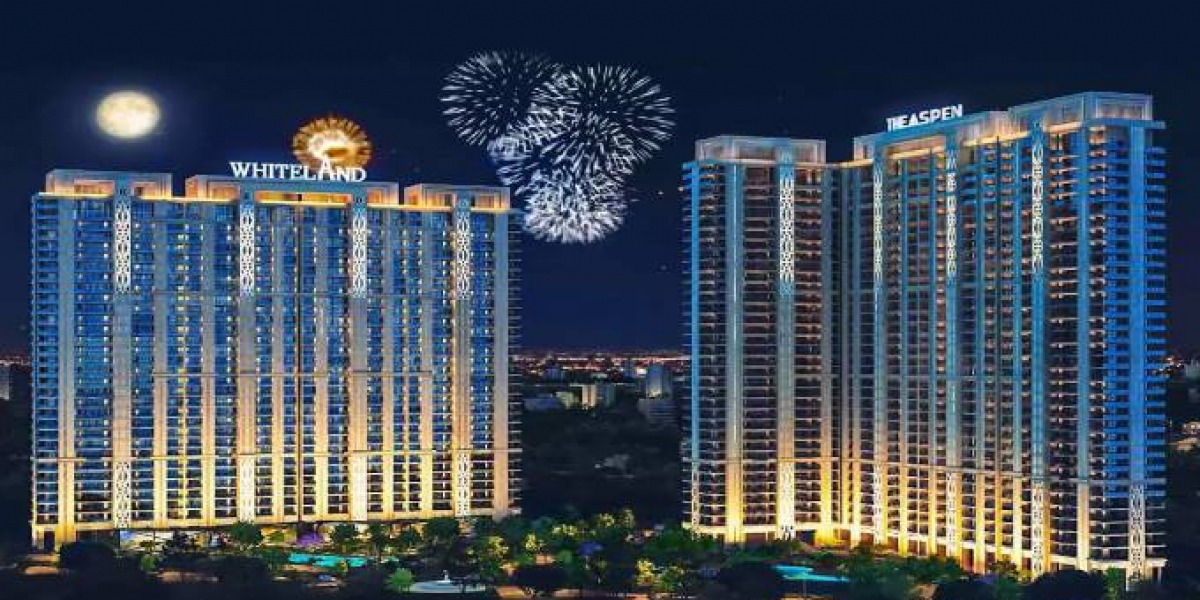 Green Engineering and Health Optimization at Whiteland The Aspen
To address this, Whiteland Corporation integrated specialized CTMA3 Air Purification technology into the core building systems. This central air infrastructure works continuously to treat, filter, and circulate air throughout enclosed common areas, double-height entrance lobbies, and tower
-
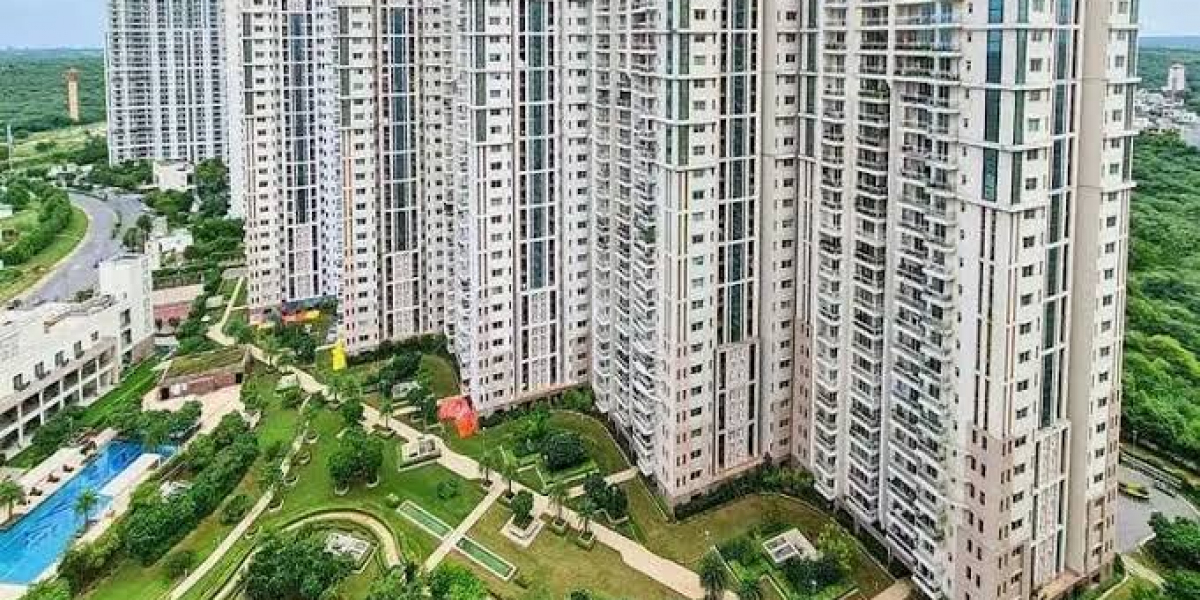 Mastering the Asset: Technical Infrastructure, Micro-Market Value, and Structural Layouts at DLF Park Place
This deep dive focuses on the granular technical infrastructure, exact structural layouts, and macro-economic factors that explain why this specific project maintains a massive edge over its competition in 2026.
-
 Brand Identity and Tenant Experience: Cultivating Loyalty at Elan Empire Gurgaon
Securing high occupancy in a premium high-street asset is only half the battle. For long-term viability, property management and individual investors must shift their focus to building tenant loyalty and creating a distinctive brand identity.
-
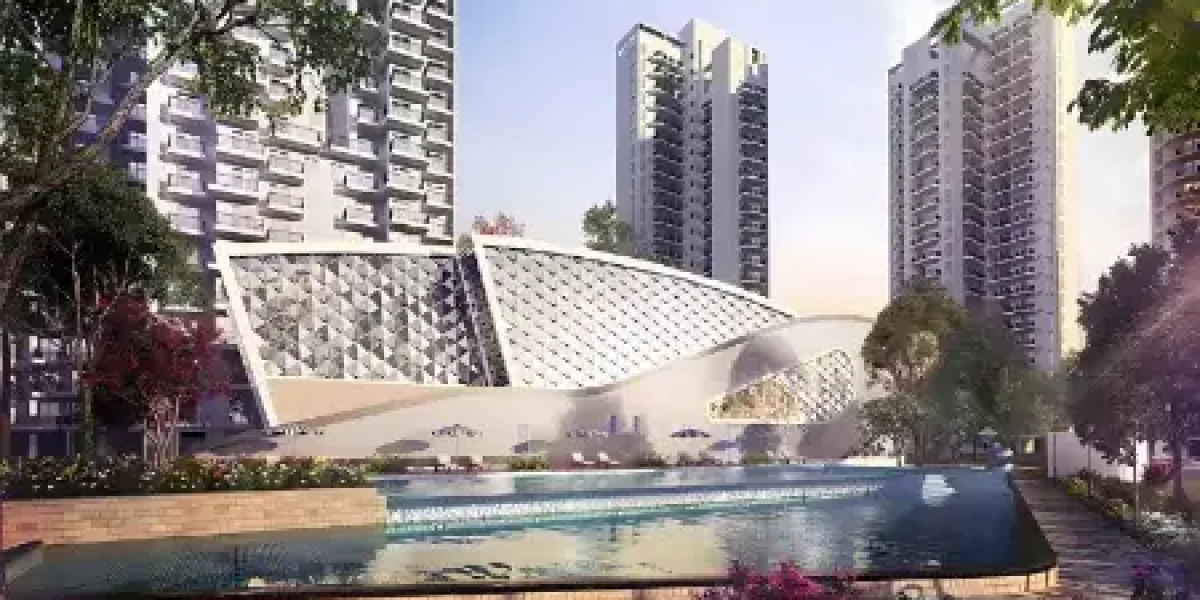 Master Review: Evaluating Godrej Nature Plus, Sector 33, Gurgaon
The layout uses a smart structural pattern where towers are angled away from each other. This creates a staggered footprint that gives corner apartments clear, unblocked views of the Aravalli foothills while ensuring optimal morning and afternoon sunlight. Inside the towers, the floor plan
-
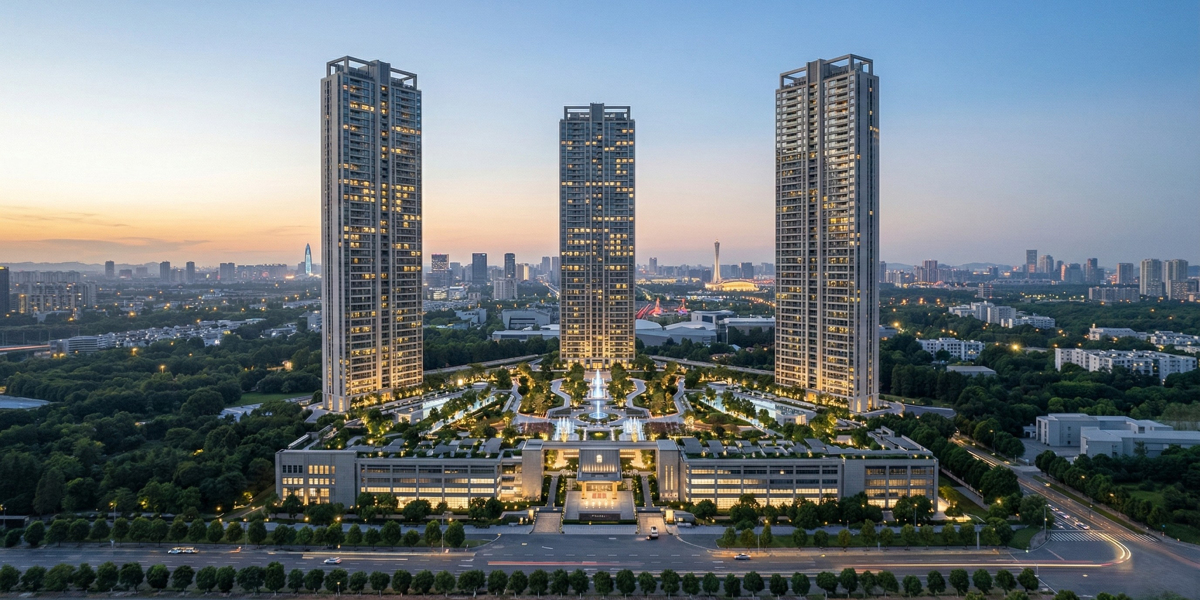 BPTP Downtown 66: A Masterpiece of Vertical Luxury in Sector 66
BPTP Downtown 66 has emerged as one of the most anticipated high-rise developments on the Golf Course Extension Road. Designed by the globally acclaimed architectural firm Aedas, this project is not just a residential complex but a vertical ecosystem where luxury meets functionality.
-
 Aesthetic Clinic in Australia | Beauty Clinic in Carolina | PM Aesthetics
Discover a trusted aesthetic clinic in Australia and a professional beauty clinic in Carolina. PM Aesthetics offers advanced skincare, cosmetic treatments, and personalized beauty solutions.
-
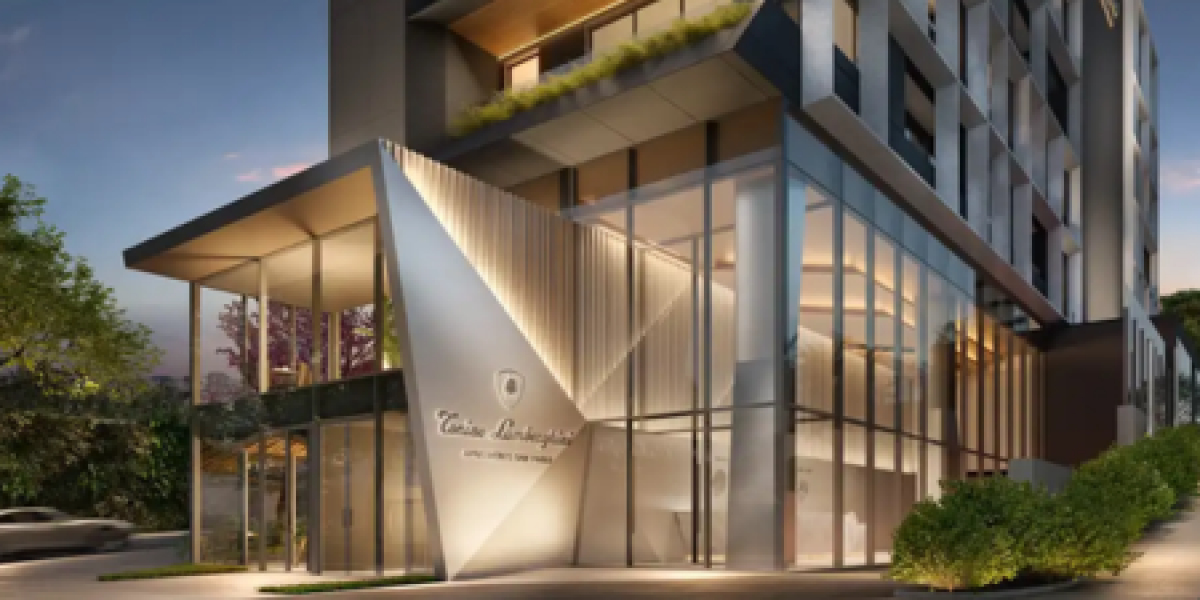 The Masterful Synergy at Signature Global Tonino Lamborghini
Signature Global Tonino Lamborghini Residences represents a ₹2,890 crore synergy of Italian supercar aesthetics and Indian engineering excellence in Sector 71.
-
 Sidewalk Repair NYC: A Complete Guide for Property Owners
Sidewalks in New York City endure constant wear and tear due to heavy foot traffic, extreme weather conditions, and tree root growth. Over time, cracks, uneven surfaces, and potholes can develop. These issues not only create an unpleasant appearance but also pose serious safety hazards for
-
 Why Natural Stone Wall Panels Are Becoming the First Choice for Modern Interiors
Discover why natural stone wall panels are becoming a top choice for modern interiors and exteriors. Learn about their durability, aesthetic appeal, and versatile applications for residential and commercial spaces.
-
 Chemical Supplier for Industrial in UAE: Reliable Solutions for Modern Industries
Find a reliable chemical supplier for industrial in UAE offering high-quality products, consistent supply, and tailored solutions for manufacturing, oil & gas, construction, and water treatment industries.
-
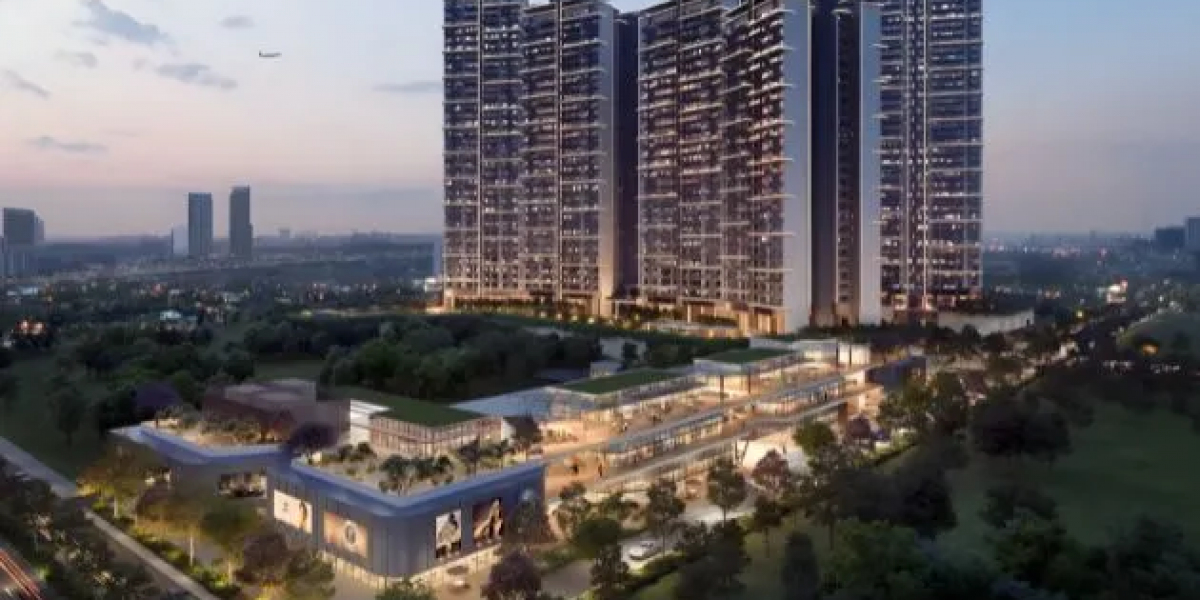 Signature Global Cloverdale SPR Gurgaon – A Modern Address for Comfortable Living
This connectivity allows residents to easily access major employment hubs, corporate offices, and business districts. The proximity to IGI Airport further adds to its appeal, especially for professionals who travel frequently.


