
If you’re an avid online shopper, chances are you've already experienced the process of archiving orders on Amazon. Archiving orders can help you keep your purchase history organized, especially if you're looking to declutter your account. However, there may come a time when you find yourself needing to remove those archived orders. In this guide, we’ll walk you through what it means to archive an order on Amazon, why you might want to remove them, and how to do it step by step.
What is an Archived Order on Amazon?
When you archive an order on Amazon, you are essentially hiding it from your default order history. This feature is useful for keeping your account organized, allowing you to focus only on current or significant orders. Archived orders are not deleted but simply moved to a separate status within your account.
Why Would You Want to Remove Archived Orders?
There are several reasons you might want to remove or unarchive your orders:
- Mistaken Archival: You may have accidentally archived an order that you need to reference.
- Mistaken Identity: If multiple family members use the same account, someone else might have archived an order that you want to access.
- Organizational Needs: You may want a clearer view of your order history without needing to unarchive items.
How to Remove Archived Orders on Amazon
While you can't permanently delete an archived order, unarchiving it is a simple process. Here’s how you can do it:
Step-by-Step Guide
Log into Your Amazon Account: Open your preferred web browser and go to Amazon.com. Sign in with your account credentials.
Go to Your Orders: Hover over the “Accounts & Lists” menu in the top right corner. From the dropdown, click on “Your Orders.”
Access Archived Orders: On the order history page, look for the “Archived Orders” link. This is usually found on the right side of the page, below your order history. Click on it.
Locate the Order You Want to Unarchive: Browse through your archived orders to find the one you want to remove from the archive.
Unarchive the Order: Next to the desired order, you will see a button labeled “Unarchive Order.” Click on this button to move the order back to your main order history.
Confirmation: A pop-up will confirm that you have successfully unarchived the order.
Tips for Managing Your Orders
- Regularly Review Archived Orders: Check your archived orders periodically to ensure that nothing important is hidden away.
- Use Order Filters: Utilize filters when displaying your orders to quickly find what you need without combing through all orders.
For More Visit Delete Archived Orders on Amazon.
Removing archived orders on Amazon is straightforward and can be accomplished in just a few minutes. By following the steps outlined in this guide, you can efficiently manage your order history and ensure that you have quick access to your important purchases. Whether you're cleaning up your account or simply need to locate a past order, understanding how to unarchive orders is a valuable skill for any Amazon shopper. Happy shopping!

Ecom member
6 posts
-
 Green Engineering and Health Optimization at Whiteland The Aspen
To address this, Whiteland Corporation integrated specialized CTMA3 Air Purification technology into the core building systems. This central air infrastructure works continuously to treat, filter, and circulate air throughout enclosed common areas, double-height entrance lobbies, and tower
-
 Mastering the Asset: Technical Infrastructure, Micro-Market Value, and Structural Layouts at DLF Park Place
This deep dive focuses on the granular technical infrastructure, exact structural layouts, and macro-economic factors that explain why this specific project maintains a massive edge over its competition in 2026.
-
 Brand Identity and Tenant Experience: Cultivating Loyalty at Elan Empire Gurgaon
Securing high occupancy in a premium high-street asset is only half the battle. For long-term viability, property management and individual investors must shift their focus to building tenant loyalty and creating a distinctive brand identity.
-
 Master Review: Evaluating Godrej Nature Plus, Sector 33, Gurgaon
The layout uses a smart structural pattern where towers are angled away from each other. This creates a staggered footprint that gives corner apartments clear, unblocked views of the Aravalli foothills while ensuring optimal morning and afternoon sunlight. Inside the towers, the floor plan
-
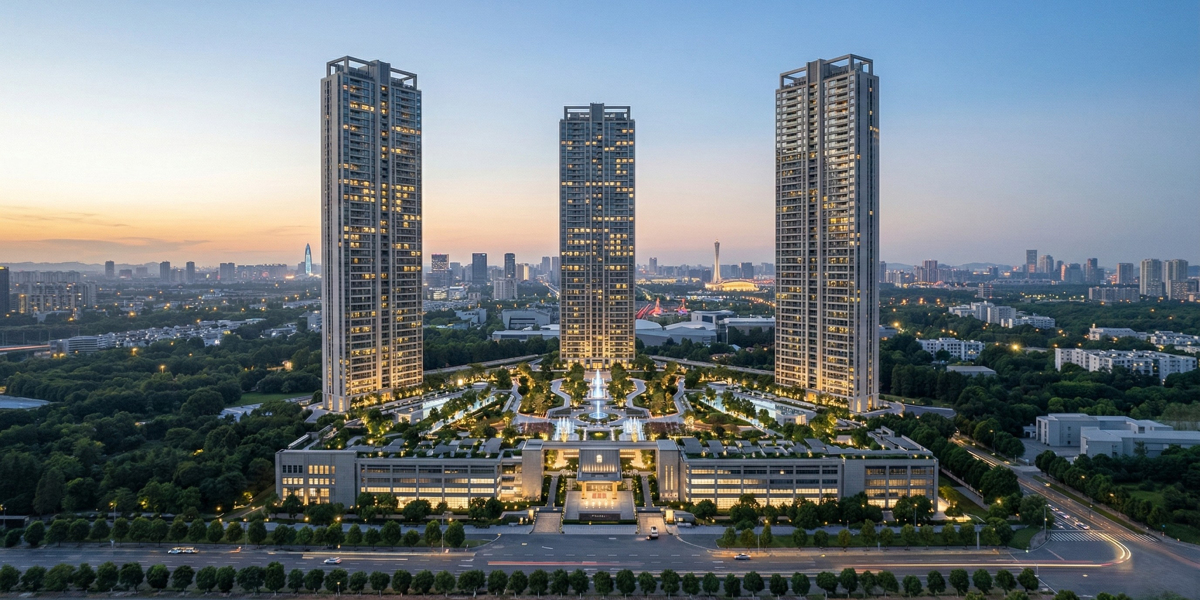 BPTP Downtown 66: A Masterpiece of Vertical Luxury in Sector 66
BPTP Downtown 66 has emerged as one of the most anticipated high-rise developments on the Golf Course Extension Road. Designed by the globally acclaimed architectural firm Aedas, this project is not just a residential complex but a vertical ecosystem where luxury meets functionality.
-
 Aesthetic Clinic in Australia | Beauty Clinic in Carolina | PM Aesthetics
Discover a trusted aesthetic clinic in Australia and a professional beauty clinic in Carolina. PM Aesthetics offers advanced skincare, cosmetic treatments, and personalized beauty solutions.
-
 The Masterful Synergy at Signature Global Tonino Lamborghini
Signature Global Tonino Lamborghini Residences represents a ₹2,890 crore synergy of Italian supercar aesthetics and Indian engineering excellence in Sector 71.
-
 Sidewalk Repair NYC: A Complete Guide for Property Owners
Sidewalks in New York City endure constant wear and tear due to heavy foot traffic, extreme weather conditions, and tree root growth. Over time, cracks, uneven surfaces, and potholes can develop. These issues not only create an unpleasant appearance but also pose serious safety hazards for
-
 Why Natural Stone Wall Panels Are Becoming the First Choice for Modern Interiors
Discover why natural stone wall panels are becoming a top choice for modern interiors and exteriors. Learn about their durability, aesthetic appeal, and versatile applications for residential and commercial spaces.
-
 Chemical Supplier for Industrial in UAE: Reliable Solutions for Modern Industries
Find a reliable chemical supplier for industrial in UAE offering high-quality products, consistent supply, and tailored solutions for manufacturing, oil & gas, construction, and water treatment industries.
-
 Signature Global Cloverdale SPR Gurgaon – A Modern Address for Comfortable Living
This connectivity allows residents to easily access major employment hubs, corporate offices, and business districts. The proximity to IGI Airport further adds to its appeal, especially for professionals who travel frequently.


